> For the complete documentation index, see [llms.txt](https://distance.gitbook.io/distance/llms.txt). Markdown versions of documentation pages are available by appending `.md` to page URLs; this page is available as [Markdown](https://distance.gitbook.io/distance/getting-started/tickets/customizing-the-tickets-view.md).
# Customizing the tickets view
Adjust how tickets are displayed, grouped, and sorted in Distance to match your workflow and focus on the information that matters most.
### **Viewing your ticket list**
On the **Tickets** page, the **Insights** panel appears at the top, showing **New tickets**, **Urgent tickets**, **# of escalations**, and **Time to resolution (all-time)**.
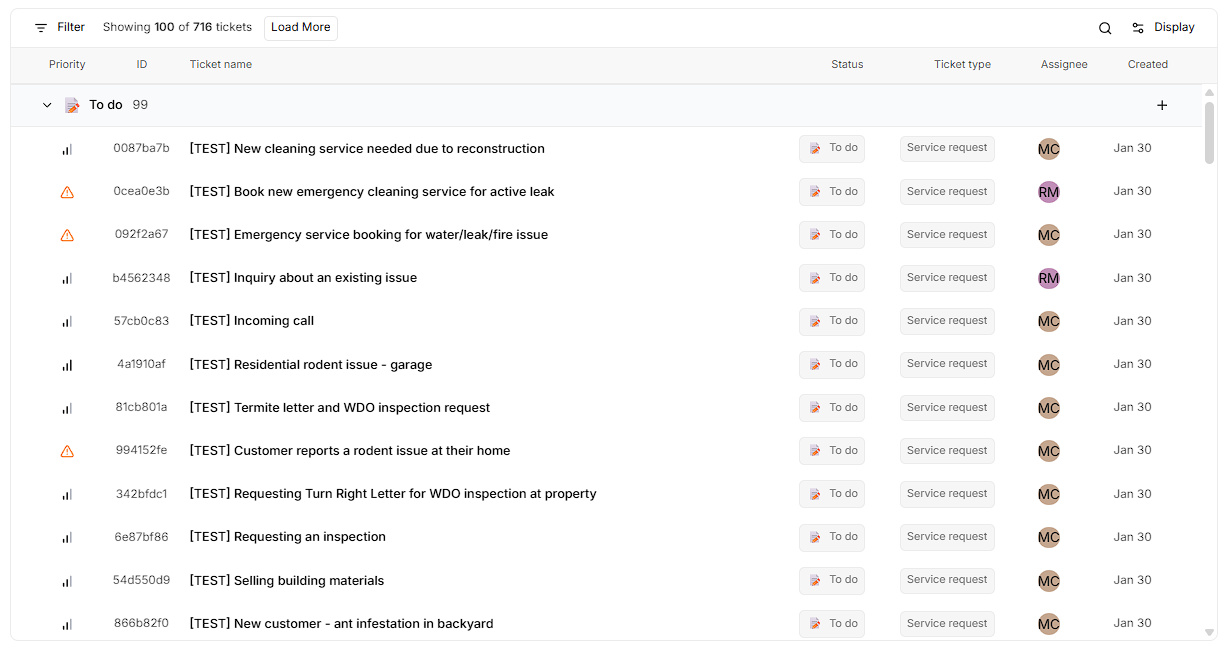
Below is the ticket list, where tickets are displayed and can be viewed, grouped, and sorted based on your selected display options.
***
### **Ticket display options**
You can tailor the Tickets page to match your workflow:
**Display** type:
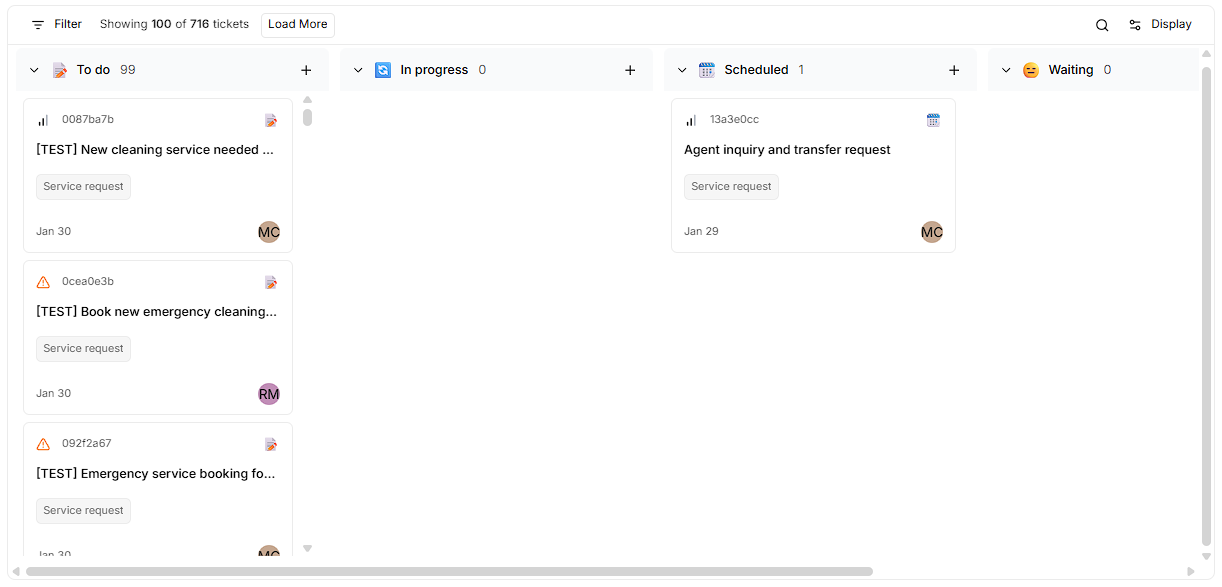
* **Board** view - Tickets as movable tiles grouped into columns.
* **List** view - Tickets in a table for easier scanning.
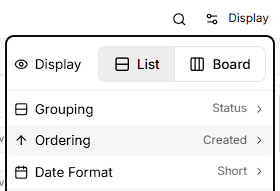
* By **Grouping** - Status, Assignee, Priority, Type, Created date, Updated date, or None.
* By **Ordering** - Priority, Created date, Updated date, or Manual.
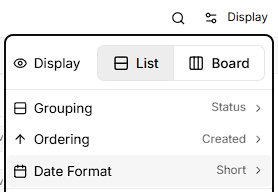
* **Date format** - Relative, Short, Medium, Long, or Time only.
* **Show empty groups** - Enable to see all possible groups, even if they have no tickets.
* **Display properties** - Choose which fields or columns are shown to focus on what matters.