> For the complete documentation index, see [llms.txt](https://distance.gitbook.io/distance/llms.txt). Markdown versions of documentation pages are available by appending `.md` to page URLs; this page is available as [Markdown](https://distance.gitbook.io/distance/getting-started/tickets/creating-a-ticket.md).
# Creating a ticket
Log and track customer requests or issues in Distance, capturing details to manage follow-ups and resolution efficiently.
### **How to create a Ticket**
Navigate to the **Tickets** from the left sidebar, then click **Create ticket**.
The next page shows two sections: **Create Ticket** and **Internal**.
#### **Create ticket**
Click **Select or create a contact** to open the pop-up, where you can search existing contacts or create a new one.
Select the **Ticket type**, which can be **Service request**, **Customer support**, or **Other**.
* **Service request** - For logging customer service requests such as scheduling or inquiries.
* **Customer support** - For resolving complaints, troubleshooting, or providing additional information.
* **Other** - For inquiries or tasks that don’t fit the above categories.
Enter a **Ticket title**.
Add the **Ticket details**. Formatting options include bold, italic, underline, strikethrough, numbered lists, and bullet lists.
Click **Attach files (Optional)** to include supporting documents.
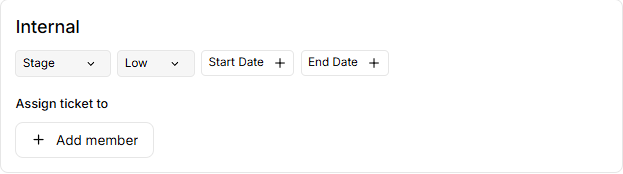
In the **Internal** section:
1. Select **Stage** (**To do**, **In progress**, **Done**, **Archived**). Tickets move through stages to track progress:
* **To do** - Tickets awaiting action or prioritization.
* **In progress** - Tickets currently being worked on.
* **Done** - Tickets successfully resolved and completed.
* **Archived** - Tickets stored for reference, with no further action required.
2. Select **Priority** (**Low**, **Medium**, **High**, **Urgent**).
3. Choose **Start Date** and **End Date** if needed.
4. Assign the ticket by clicking **+ Add member**.
Click **Create ticket** on the upper-right side of the page to save or **Cancel** to discard your draft.
***
### **How a Ticket looks**
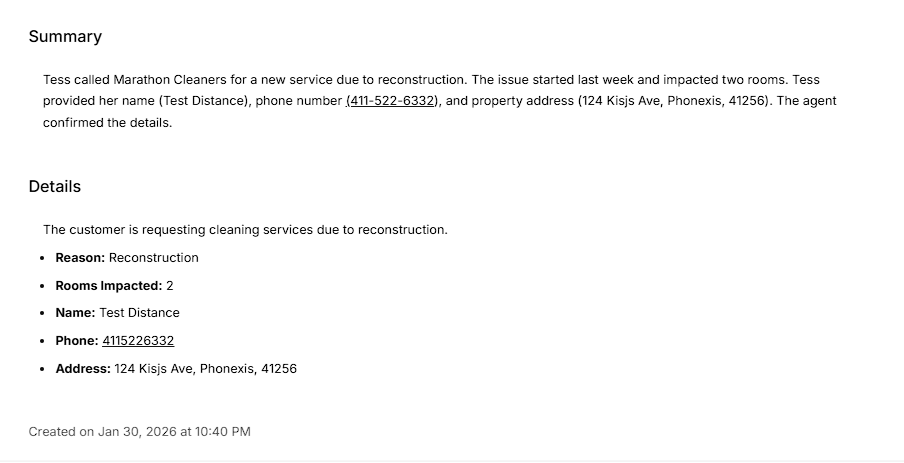
Click a ticket to open its detailed view, where you can manage its status and review all related customer information in one place.
**Update stage** dropdown - Change **To do**, **In progress**, **Done**, or **Archived**.
**Mark as done** - Quickly complete the ticket.
**Summary** - High-level overview of the ticket.
**Details** - Customer information like name, phone, address, and issue.
**Recording** - Audio recordings of calls.
**Conversation transcript** - Full chat or call transcript.
**Internal notes** - Private notes visible only to your team, used to add context, track updates, or leave handoff information related to the ticket. These notes are not shared with the customer.
**Client information** - Associated contact details with **View contact** and **Send message** buttons.