> For the complete documentation index, see [llms.txt](https://distance.gitbook.io/distance/llms.txt). Markdown versions of documentation pages are available by appending `.md` to page URLs; this page is available as [Markdown](https://distance.gitbook.io/distance/getting-started/dashboard.md).
# Dashboard
The Dashboard provides a centralized view of team performance, conversations, tickets, and metrics, helping you track activity and monitor customer interactions.
### **Introduction**
The **Dashboard** gives your team a clear view of activity across chat, calls, and tickets. Metrics, charts, and key performance indicators help monitor trends, agent activity, and response efficiency at a glance.
Sections like knowledge base ratings, team management, and My Tickets provide immediate access to operational insights and actionable tasks.
***
### **Why the Dashboard matters**
**Monitor overall activity**. See chats, calls, and tickets across different time ranges.
**Track response efficiency**. Average chat and call durations, and median response time highlight workflow bottlenecks.
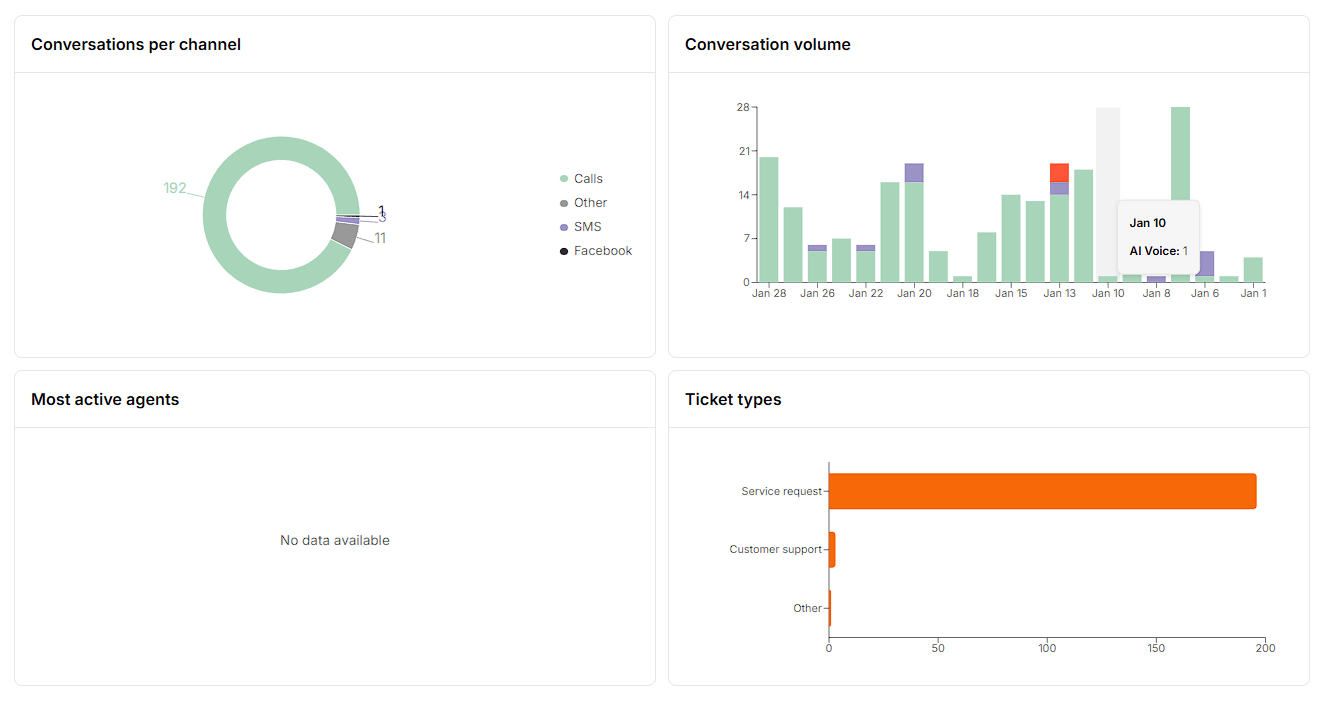
**Identify trends**. Visualizations like conversations per channel, conversation volume, active agents, and ticket types make patterns easy to spot.
**Manage your team**. Quickly invite team members, assign responsibilities, and configure notifications.
**Improve performance**. Knowledge base ratings and actionable insights highlight areas for training or process improvement.
***
### **Overview section**
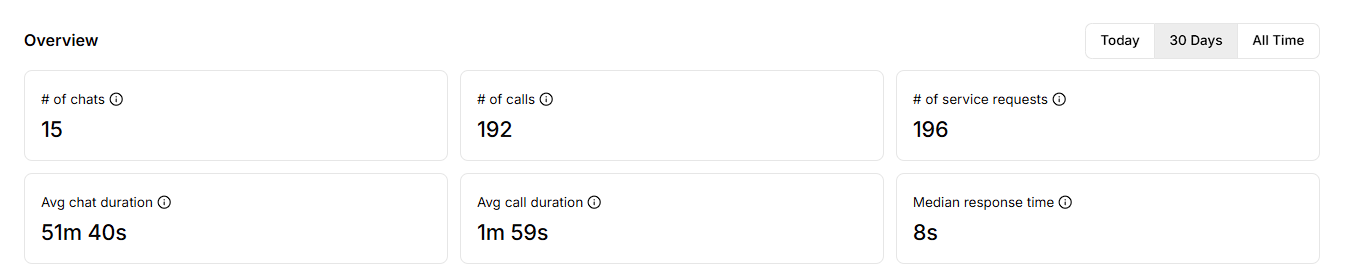
The **Overview** section summarizes your key metrics for the selected time range. Metric cards provide quick insight into your activity, including chats, calls, and service requests, as well as average chat and call durations and median response time.
**Metric cards** - Displays cards summarizing activity over the selected time range. Metrics include:
* **# of Chats** - Total number of chat conversations in the last 30 days.
* **# of Calls** - Total number of phone calls in the last 30 days.
* **# of Service Requests** - Total number of service request tickets in the last 30 days.
* **Avg Chat Duration** - Average length of chat conversations in the last 30 days.
* **Avg Call Duration** - Average length of phone calls in the last 30 days.
* **Median Response Time** - Median time to first response across all conversations in the last 30 days.
**Charts and visualizations** - Help you analyze performance and trends.
* **Conversations per channel** - Donut chart showing message volume per channel.
* **Conversation volume** - Vertical bar chart showing chat, call, and ticket trends over time.
* **Most active agents** - Shows agents with the highest conversation counts.
* **Ticket types** - Horizontal bar chart summarizing ticket categories.
The default view is set to the **last 30 days**, but you can switch to **Today** or **All Time** to analyze different time ranges.
***
### **Knowledge base rating**
This section displays the percentage of positive ratings for your Knowledge Base articles. Use the **Improve** (redirects to **Knowledge Base** page) button to quickly update or refine content for better customer satisfaction.
***
### **Manage your team**
Add and configure your team members to control ticket assignments and notifications.
* **Invite your team members** - Click **Invite** to send invites (redirects to **Settings** → **Team**).
* **Configure assignment rules and notifications** – Click **Configure** to set rules and alerts (redirects to **Settings** → **Notifications**).
This section ensures the right team members handle the right conversations while keeping notifications tailored to their workflow.
***
### **My tickets**
The **My Tickets** section shows tickets assigned to you or linked to your activity. Quickly view, manage, and follow up on ongoing tickets without leaving the Dashboard.
The **Dashboard** helps your team make faster, more informed decisions by turning activity data into clear, actionable insight. With visibility into performance trends and workload at a glance, teams can respond more efficiently, spot issues early, and continuously improve the customer experience.