> For the complete documentation index, see [llms.txt](https://distance.gitbook.io/distance/llms.txt). Markdown versions of documentation pages are available by appending `.md` to page URLs; this page is available as [Markdown](https://distance.gitbook.io/distance/getting-started/settings/call-transfer-schedule-tab.md).

# Call transfer schedule tab

Create and manage team availability schedules used for team-based call transfers.

### **Introduction**

**Call transfer schedule** defines when groups of team members are available to receive transferred calls. By configuring primary and secondary responders along with their availability windows, your business can ensure incoming calls are routed to the appropriate people at the right time.

<div data-with-frame="true"><figure><img src="https://4165927833-files.gitbook.io/~/files/v0/b/gitbook-x-prod.appspot.com/o/spaces%2FWHGGlctFzoGEVhyOAO17%2Fuploads%2F7hxmahvePwO3IvA1bx9C%2Fimage.png?alt=media&amp;token=3ec82509-0c2d-4bda-94db-aebf7c4d23cc" alt=""><figcaption></figcaption></figure></div>

These schedules are used in Team schedules call transfer rules, allowing call routing to automatically follow the availability you configure.

***

### **Creating a call transfer schedule**

To create a call transfer schedule, click **Create new call transfer schedule**.

<div data-with-frame="true"><figure><img src="https://4165927833-files.gitbook.io/~/files/v0/b/gitbook-x-prod.appspot.com/o/spaces%2FWHGGlctFzoGEVhyOAO17%2Fuploads%2Fmb3OFu3H7qEd77eIxWia%2Fimage.png?alt=media&amp;token=0f451109-4afa-4cfc-9b9e-8a800ed82e51" alt=""><figcaption></figcaption></figure></div>

Enter a name for the schedule, such as "Daytime team".

<div data-with-frame="true"><figure><img src="https://4165927833-files.gitbook.io/~/files/v0/b/gitbook-x-prod.appspot.com/o/spaces%2FWHGGlctFzoGEVhyOAO17%2Fuploads%2FTh2nHQH2sIyn48D8UNWD%2Fimage.png?alt=media&amp;token=c2bf2220-539f-464f-98b0-c27b60a8c7d6" alt=""><figcaption></figcaption></figure></div>

Under **Primary responders**, click **Add member or add phone number**. Select an active team member from the dropdown, or enter a phone number directly.&#x20;

<div data-with-frame="true"><figure><img src="https://4165927833-files.gitbook.io/~/files/v0/b/gitbook-x-prod.appspot.com/o/spaces%2FWHGGlctFzoGEVhyOAO17%2Fuploads%2FfYispgpKfq3o0wXADdR1%2Fimage.png?alt=media&amp;token=0f85ff0c-cb94-4972-8cdf-2e4eec72b779" alt=""><figcaption></figcaption></figure></div>

You can also add or edit a phone number for a listed team member.

<div data-with-frame="true"><figure><img src="https://4165927833-files.gitbook.io/~/files/v0/b/gitbook-x-prod.appspot.com/o/spaces%2FWHGGlctFzoGEVhyOAO17%2Fuploads%2FzsGArEK1sglb24p898bz%2Fimage.png?alt=media&amp;token=083055f0-b5d3-4f18-8d43-28908c815ffe" alt=""><figcaption></figcaption></figure></div>

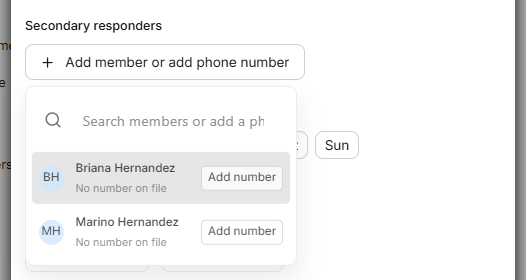
Under **Secondary responders**, you can add additional team members or phone numbers. These responders will be called next if no one under **Primary responders** answers the transfer.

<div data-with-frame="true"><figure><img src="https://4165927833-files.gitbook.io/~/files/v0/b/gitbook-x-prod.appspot.com/o/spaces%2FWHGGlctFzoGEVhyOAO17%2Fuploads%2F4LbP6kAtzJRUs8juZQBk%2Fimage.png?alt=media&amp;token=504cdacd-edb3-41eb-9f2e-92a3c4860797" alt=""><figcaption></figcaption></figure></div>

Under **Schedule**, select the applicable days for the team schedule. You can choose individual days or use **Weekdays**, **Weekends**, or **Everyday** for quicker setup.

<div data-with-frame="true"><figure><img src="https://4165927833-files.gitbook.io/~/files/v0/b/gitbook-x-prod.appspot.com/o/spaces%2FWHGGlctFzoGEVhyOAO17%2Fuploads%2FxeFKhLQzIop0yAohng50%2Fimage.png?alt=media&amp;token=fd885663-99b8-4828-b443-8634072b5c0f" alt=""><figcaption></figcaption></figure></div>

Set the **Start time** and **End time** to define when the listed responders are available to receive transferred calls. Click **Save** once done.

<div data-with-frame="true"><figure><img src="https://4165927833-files.gitbook.io/~/files/v0/b/gitbook-x-prod.appspot.com/o/spaces%2FWHGGlctFzoGEVhyOAO17%2Fuploads%2F3Ef2oAYgk7aLDYU8nOUq%2Fimage.png?alt=media&amp;token=ad8c137a-6d25-4f93-acd0-cd53c88279ac" alt=""><figcaption></figcaption></figure></div>

Your team schedule will appear in the list and will now be available when configuring a [**team schedules call transfer rule**](/distance/getting-started/agents/ai-voice-agent/call-transfer-rules-setup-guide.md#setting-up-a-team-schedules-transfer-rule).

<div data-with-frame="true"><figure><img src="https://4165927833-files.gitbook.io/~/files/v0/b/gitbook-x-prod.appspot.com/o/spaces%2FWHGGlctFzoGEVhyOAO17%2Fuploads%2Fsfp047GcKQP7Hy2C1oDz%2Fimage.png?alt=media&amp;token=fc22dde5-bf51-4075-8d37-0c0c1b95c6a3" alt=""><figcaption></figcaption></figure></div>