> For the complete documentation index, see [llms.txt](https://distance.gitbook.io/distance/llms.txt). Markdown versions of documentation pages are available by appending `.md` to page URLs; this page is available as [Markdown](https://distance.gitbook.io/distance/getting-started/call-forwarding/forwarding-calls-from-podium-to-distance.md).
# Forwarding calls from Podium to Distance
Set up call forwarding from Podium to Distance for overflow backup, after-hours answering, or as your virtual receptionist.
### **Introduction**
Forwarding calls from Podium routes incoming calls to your Distance number, allowing your **AI Voice** agent to answer calls on your behalf. Calls are logged in Distance with conversation transcripts and automatically create tickets.
Choose the forwarding option that best fits your business, whether you want your **AI Voice** agent to answer all calls, after-hours calls, or serve as a backup during business hours.
***
### **Optional: Add Distance as an External number**
Before configuring call routing, you can add your Distance phone number as an **External number** in Podium. This makes it easier to select later and avoids manually entering the number during routing setup.
1. In Podium, click **More → Settings**.
2. Under **Communications → Phones**, select **Desk phones**.
3. In **External numbers**, click **Add number**.
4. Enter a **Nickname**, for example "Distance", and your **Distance phone number**.
5. Set **Permission for call forwarding** to **Don’t ask permission**.
{% hint style="info" %}
Because Distance AI cannot accept or approve forwarded calls, Don’t ask permission must be selected for calls to route successfully.
{% endhint %}
4. Click **Save**.
Once added, the Distance number is selectable in call routing settings.
***
### **Forward overflow and missed calls**
Use this configuration to forward calls to your **AI Voice** agent only when your team does not answer within the configured ring time, serving as a backup for missed calls.
Podium does not allow routing from an external number or standalone phone number into another call group, so the call group that forwards to your Distance phone number must be the final step in your routing flow.
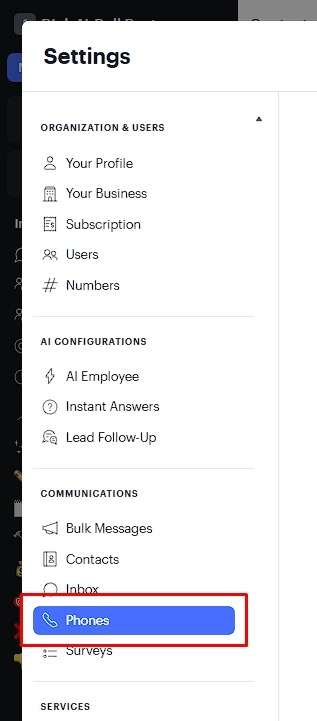
Go to **Settings**, then select **Phones**.
Open the **Call Groups** tab and click **Create call group**.
On the **Details** tab, enter a **Group name**. The **Extension** and **Advanced** fields can be left unchanged. Click **Next** to continue.
On the **Members** tab, use the **Add members** dropdown to select the user or users who should receive calls in this group. Click **Next** to continue.
{% hint style="info" %}
If multiple users are selected, all selected numbers will ring at the same time when a call reaches this group.
{% endhint %}
On the **Routing** tab, under **During business hours**, set **If unanswered after 4 rings, forward to** and select **Phone number**.
In the **Select number** dropdown, choose **Add new number**, then enter your Distance phone number. Hit **Next** once done.
{% hint style="info" %}
This group should be the last group in your routing sequence, as Podium does not support routing from an external number to another call group.
{% endhint %}
Configure your call group schedule on the **Schedules** tab. Click **Save** to finish.
#### **Using multiple call groups**
If you need calls to ring multiple teams or numbers in a specific order, repeat this process to create additional call groups. Configure each group to forward to the next group if unanswered, and ensure the final group forwards to Distance.
This setup allows your team to handle calls first during open hours, while still ensuring unanswered calls are routed to Distance as a reliable fallback.
***
### **Forward after-hours calls**
Use this configuration to forward calls to your **AI Voice** agent only during your after-hours while continuing to handle calls normally during business hours.
From the **Call Experience** tab, select the phone number you want to configure. The default number is labeled **Podium number**.
Click **After-Hours Calls**. Turn on **Customize after-hours calls preferences**.
Under **Route after-hours calls directly to**, click the dropdown and select **Phones**.
* In **Include these phones**, open the dropdown and select the Distance number under **External numbers**. If you did not add Distance as an External number, manually enter your Distance phone number as described in [**Alternative method (Manual entry)**](#alternative-method-manual-entry).
Under **Permission for call forwarding**, select **Don’t ask permission**.
Turn off the **Call greeting**. Your screen should look like the below image.
***
### **Forward all calls**
Use this configuration to make your **AI Voice** agent your virtual receptionist by routing all incoming calls directly to it, regardless of business hours.
From the main page of your Podium account, click **More**, then select **Settings**.
Under the **Communications** section, click **Phones**.
From the **Call Experience** tab, select the phone number you want to configure. The default number is labeled **Podium number**.
Click **Call routing**. Under **Route calls directly to**, click the dropdown and select **Phones**.
In **Include these phones**, open the dropdown and select the Distance number under **External numbers**.
Under **Permission for call forwarding**, select **Don’t ask permission**.
Turn off the **Call greeting**.
#### **Alternative method (Manual entry)**
If you did not add Distance as an external number:
Under **Route calls directly to**, select **# Phone number**.
For **Phone number**, select **Enter a number** and manually enter your Distance phone number.
Under **Permission for call forwarding**, select **Don’t ask permission**, then turn off the **Call greeting**. Click **Save** once done.